Update User Profile
Use My Profile to review and update your personal information, mailing address and associated companies, so your contact and account details stay accurate.
Signed-in Tier 1 and Tier 2 users. The editing steps are the same for both.
Open Your Profile
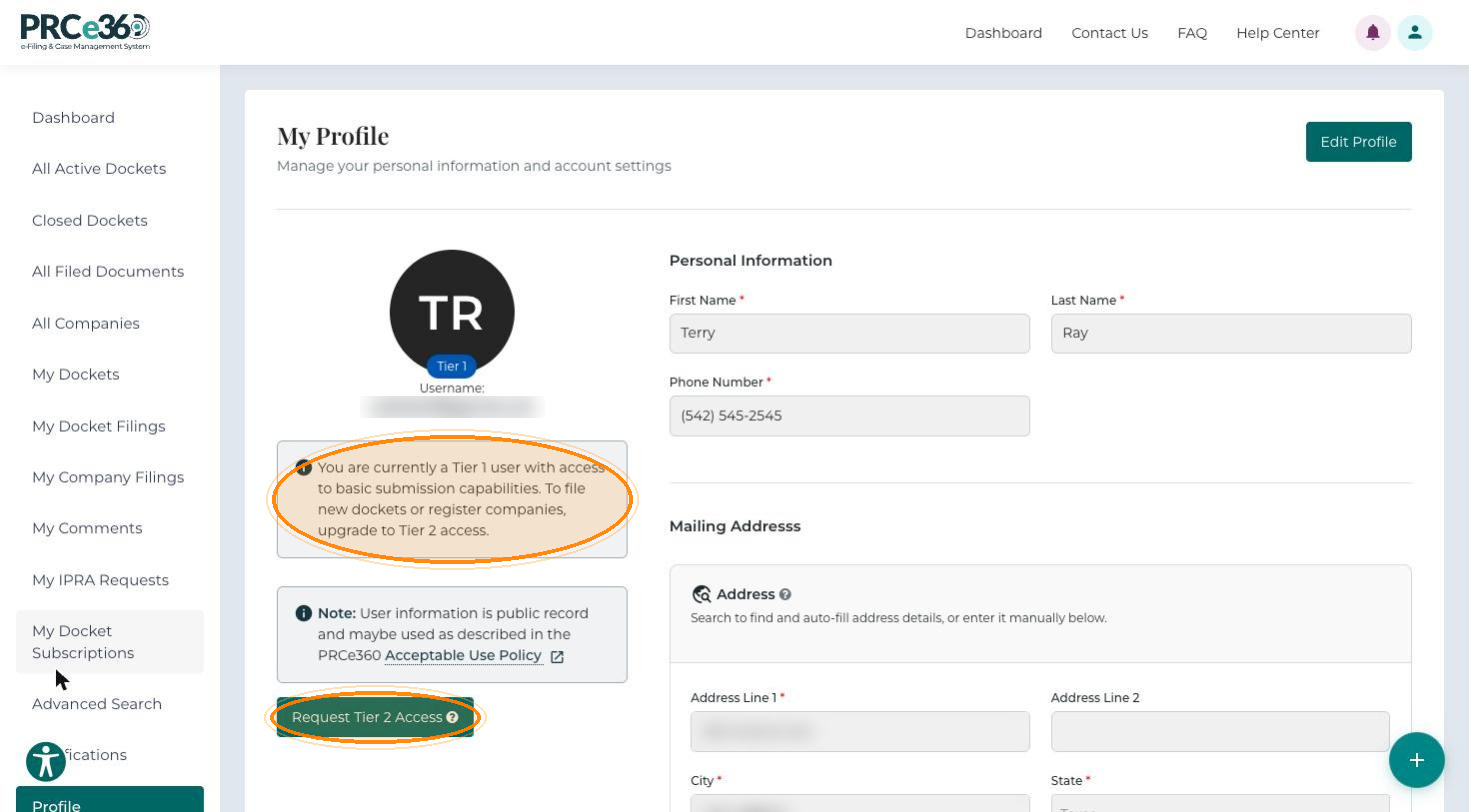
After signing in, click Profile in the left-hand menu. The My Profile page opens and shows your username (your email address) under your profile picture, together with a Tier 1 or Tier 2 badge.
| User type | What the profile shows |
|---|---|
| Tier 1 | The Edit Profile button, a note that you have basic submission capabilities and must upgrade to Tier 2 to file new dockets or register companies, and the Request Tier 2 Access button (see Request Tier 2 Access). |
| Tier 2 | The Edit Profile button. |
Edit Your Profile
-
Click Edit Profile. The editable fields become available.
-
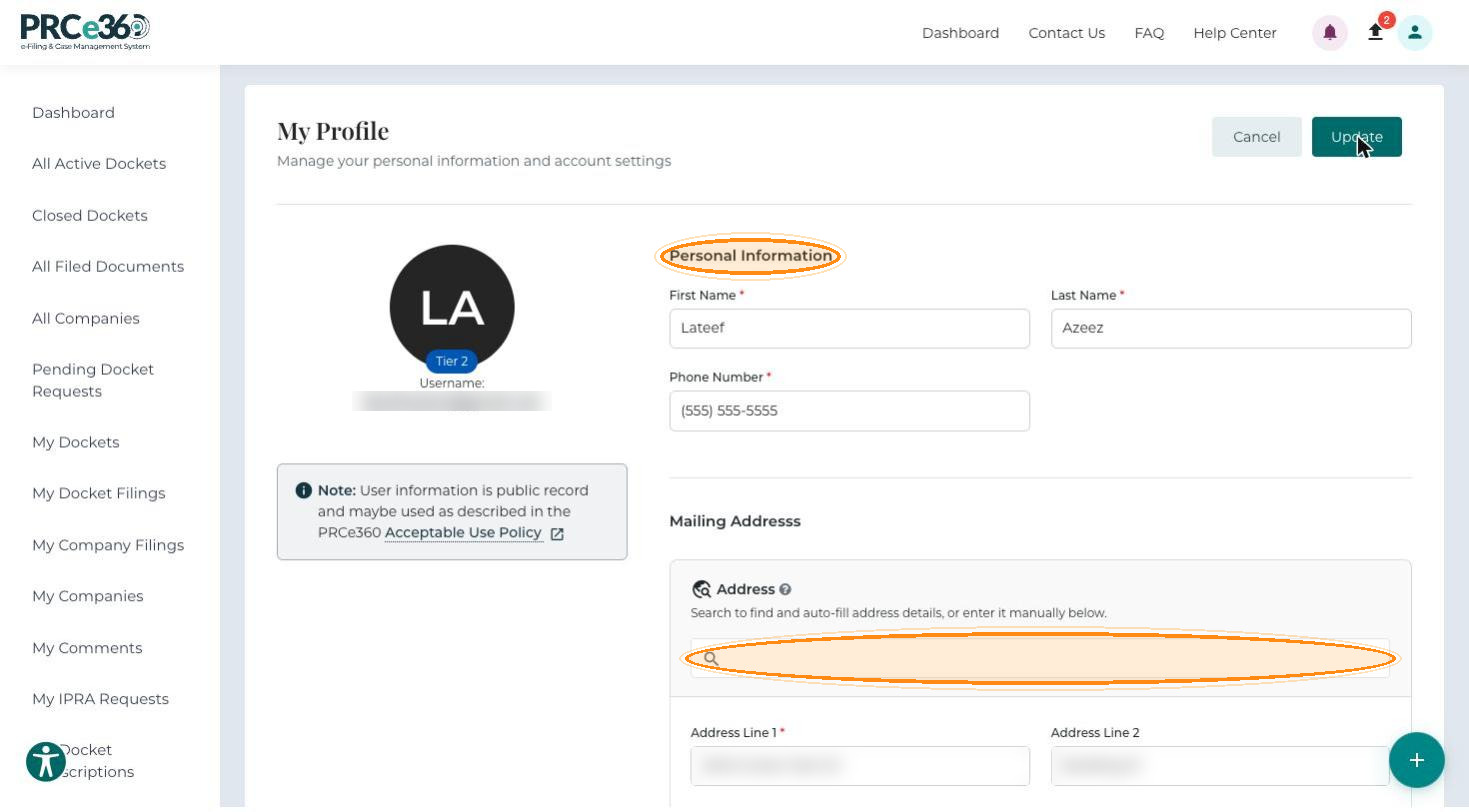
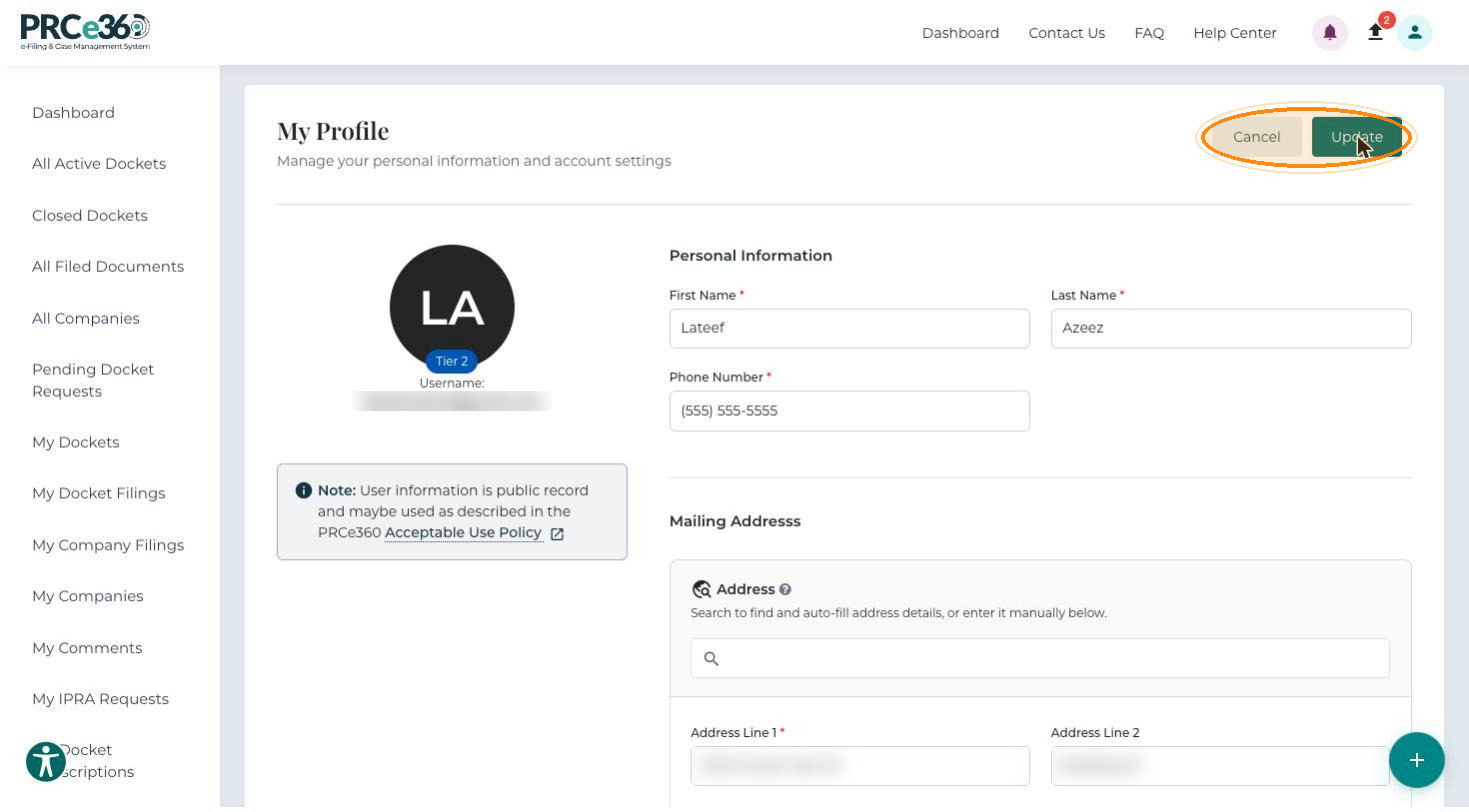
Under Personal Information, update your First Name*, Last Name* and Phone Number* as needed.
-
Under Mailing Address, search for an address in the Address search box to fill in the fields automatically, or edit Address Line 1*, Address Line 2, City*, State* and Postal / Zip Code* directly.
-
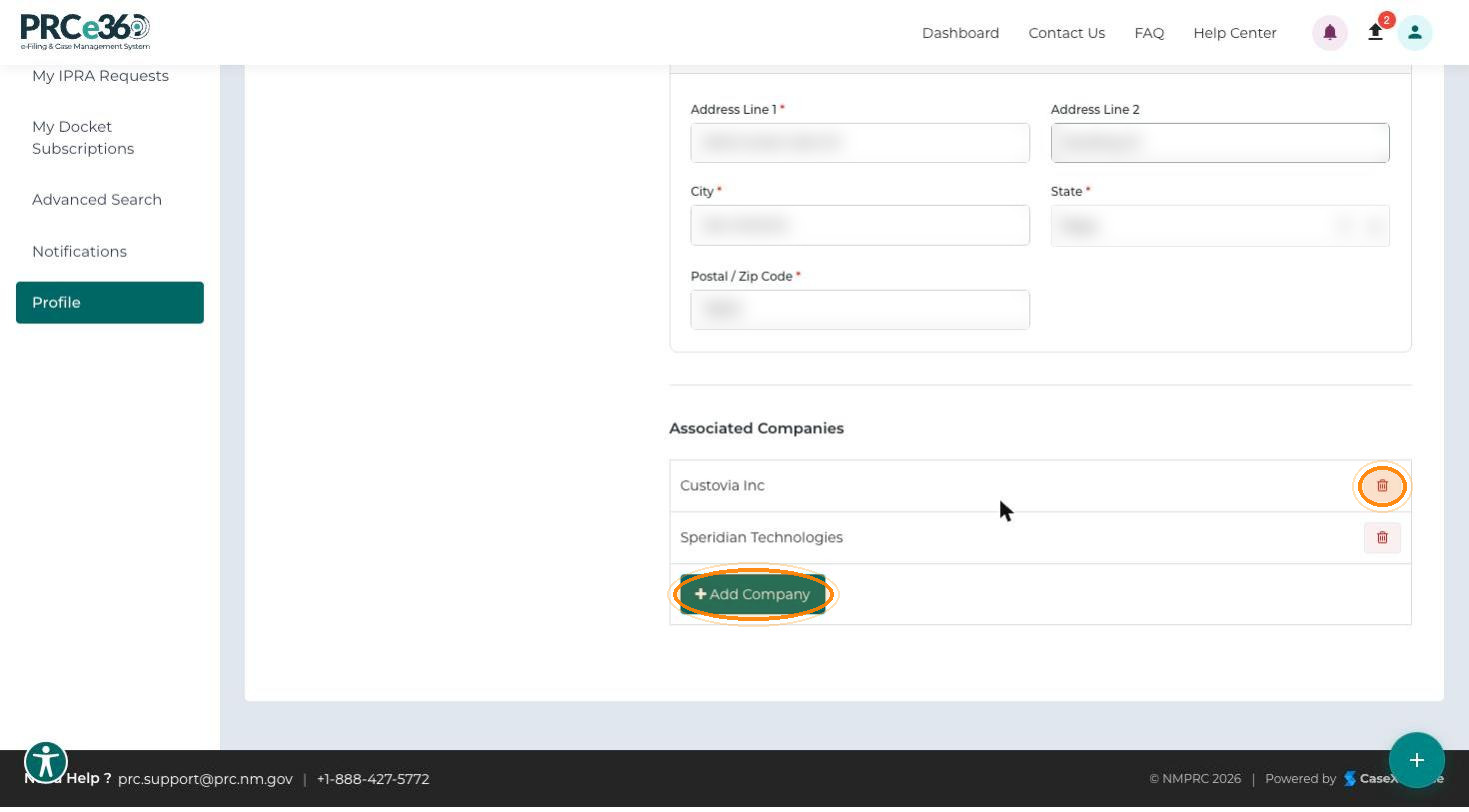
Under Associated Companies, click + Add Company to add a company to your profile. You need an associated company to file a new docket. To remove a company, click the delete (trash) icon on its row.
-
Click Update to save your changes, or Cancel to discard them.
A success message confirms the update, and the changes appear on your profile straight away.